 Meshi Docs
Guides
Connect Luma
Give Meshi read access to your Luma calendar, and ask your attendees for the two things that make matching work.
Connecting Luma lets Meshi read your calendar’s events and their guest lists, so attendees arrive in Meshi without a CSV export. It takes about two minutes.
1. Copy your calendar’s API key
-
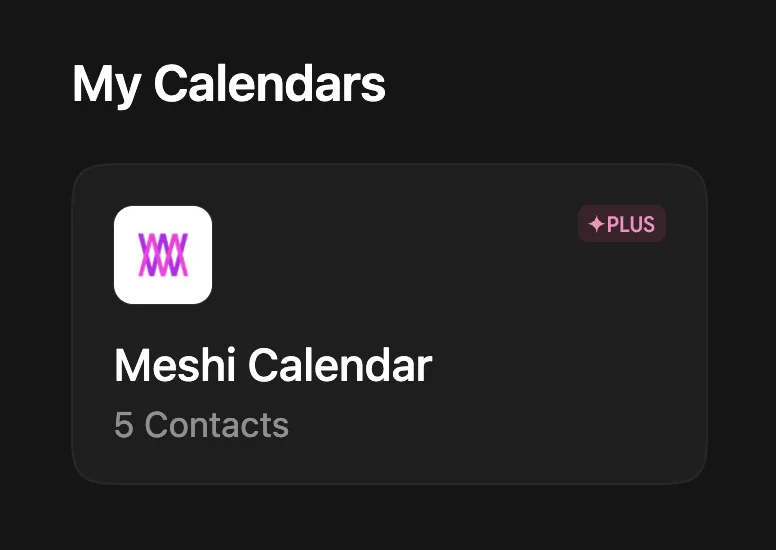
Open the Luma calendar you want to connect. From My Calendars, select the calendar that hosts your events.
-
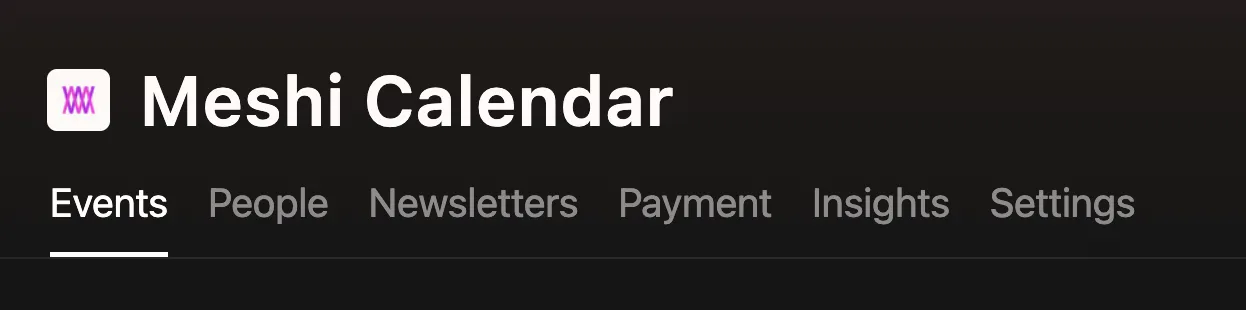
Open the Settings tab.
-
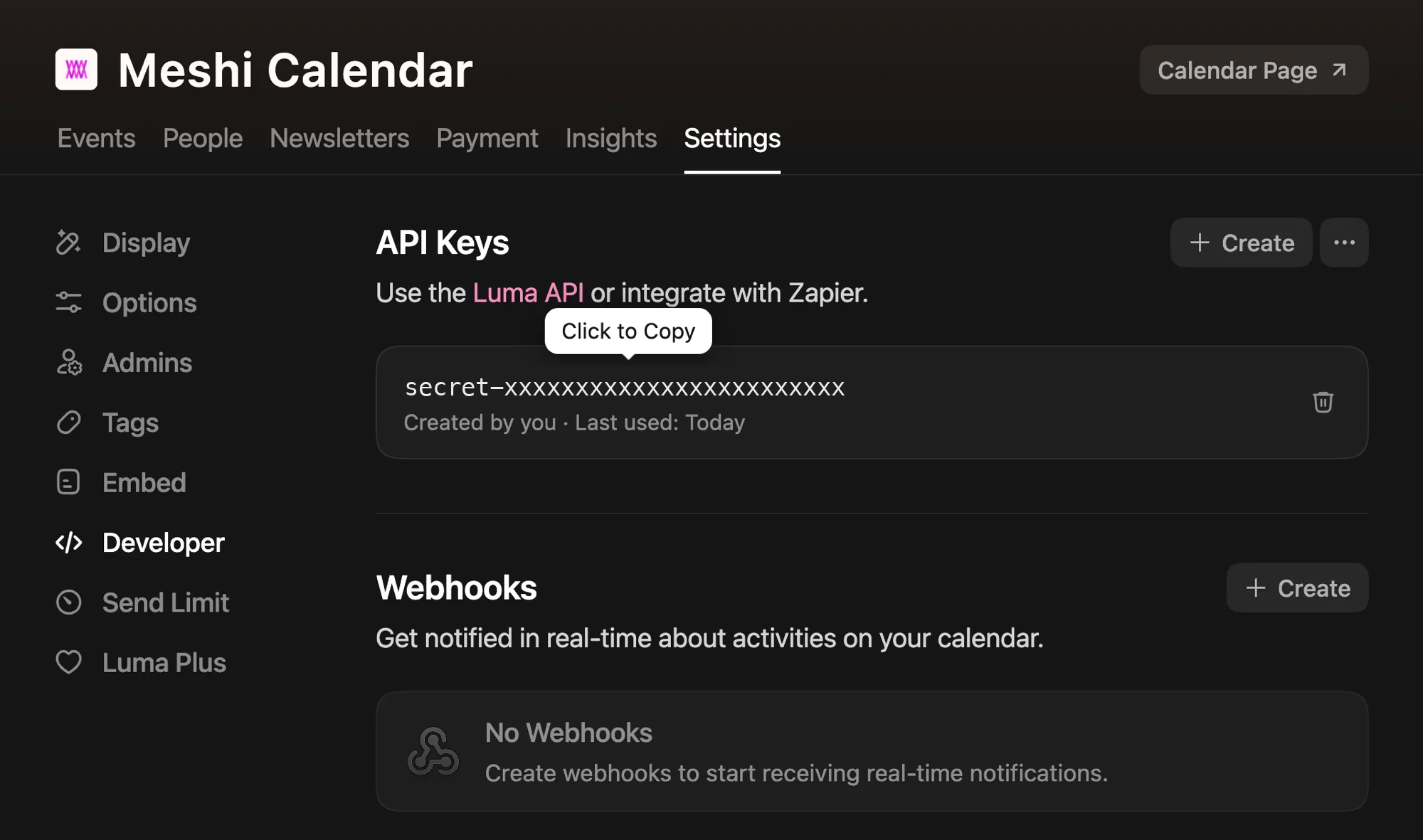
Choose Developer in the sidebar, then copy the key under API Keys. If no key exists yet, select + Create first.
-
In Meshi, go to Org settings → Integrations, paste the key, and select Connect. Keys begin with
secret-.
2. Set up your registration form
Meshi can only work with what your attendees actually gave you at registration. Three settings on each event decide that. Set them before you open registration — see the warning at the end of this section for why.
Collect a phone number
In your event’s Registration Questions, set Phone to Required under Personal Information.
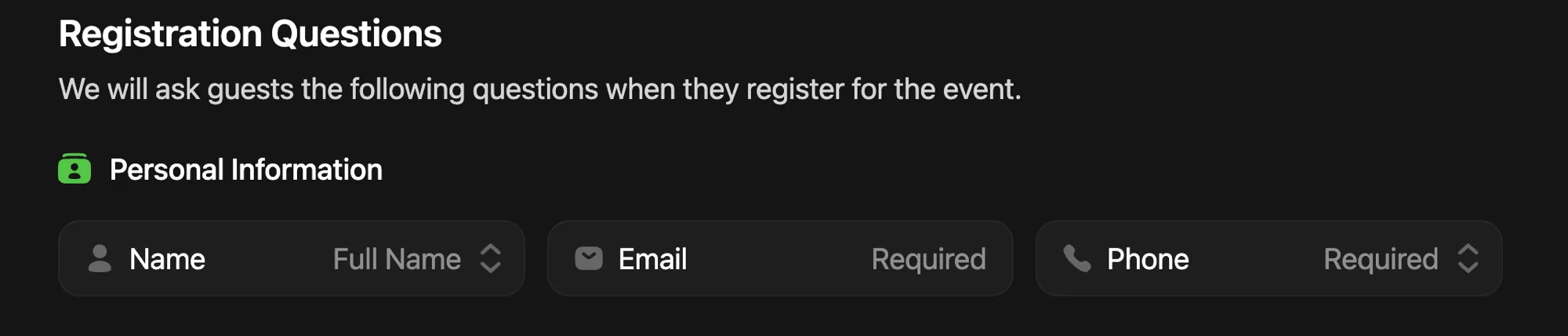
Without a phone number, Meshi has no way to reach that attendee.
Collect a LinkedIn profile
Add a LinkedIn custom question and mark it Required.

LinkedIn is what lets Meshi build a useful picture of who is in the room, and it is the strongest signal for matching attendees to each other.
Collect consent for messaging
Add a Terms question and mark it Required. Set the content type to Text and paste the consent language below.
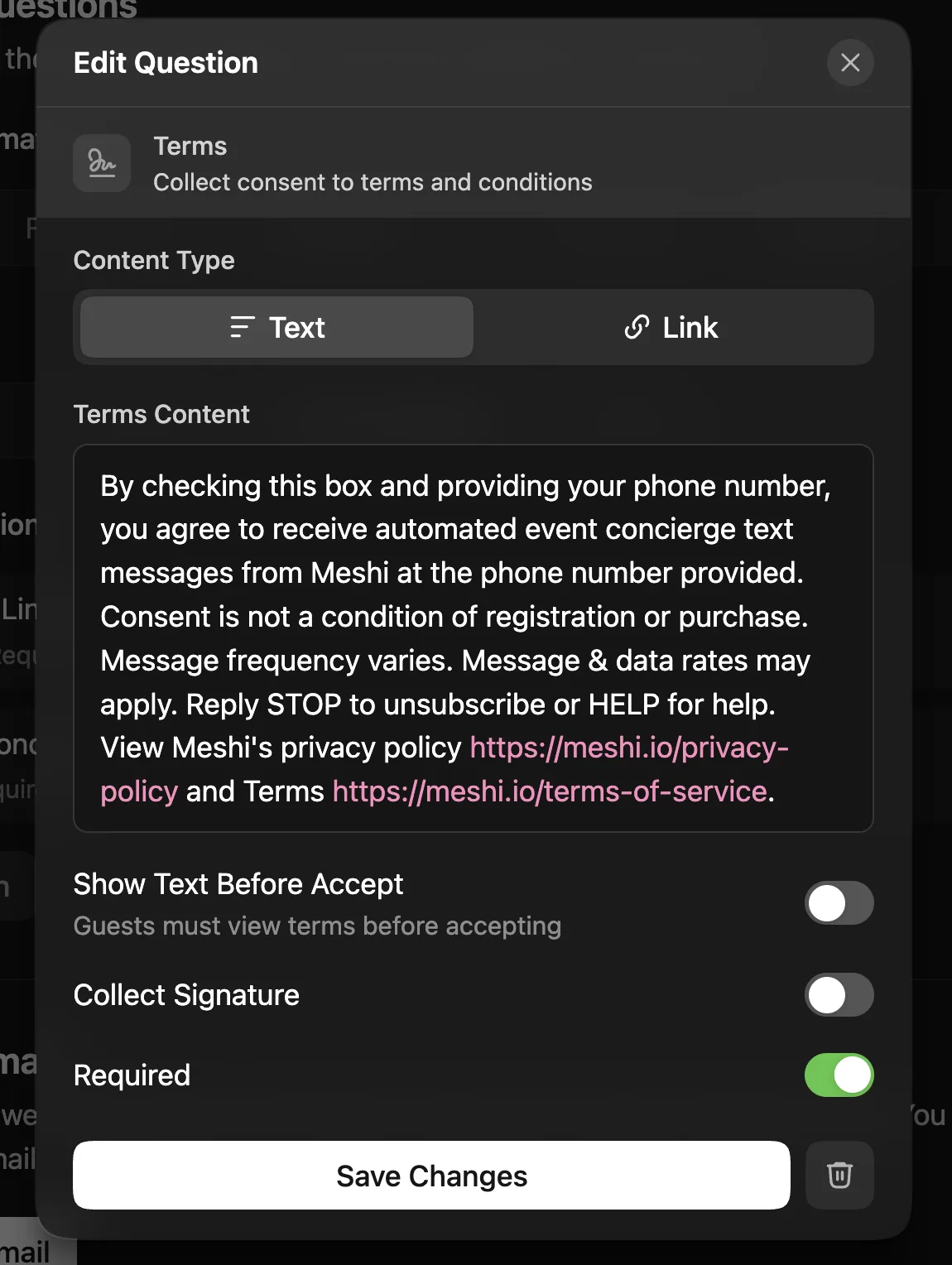
By checking this box and providing your phone number, you agree to receive
automated event concierge text messages from Meshi at the phone number
provided. Consent is not a condition of registration or purchase. Message
frequency varies. Message & data rates may apply. Reply STOP to unsubscribe
or HELP for help. View Meshi's privacy policy https://meshi.io/privacy-policy
and Terms https://meshi.io/terms-of-service.
Once saved, it appears in your registration questions like this:

3. What your attendees see
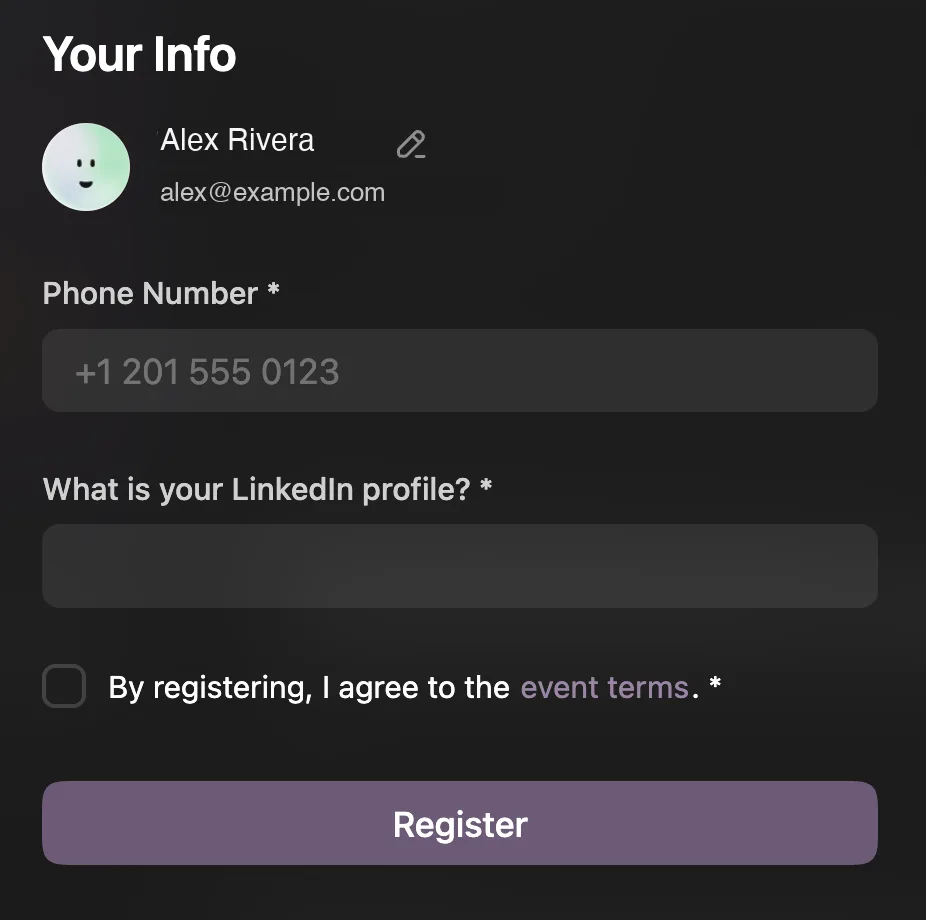
With all three in place, your Luma registration form asks for a phone number and a LinkedIn profile, and requires agreement to the event terms:
4. Check your connection
Meshi’s Integrations screen shows, per event, whether it collects LinkedIn and terms, and how many of your registered guests can actually be reached.
Two things worth knowing when you read that screen:
- Events labelled “View” show “unknown” for form settings. Luma does not report registration settings for events a calendar does not manage, so Meshi cannot tell you either. It says “unknown” rather than guessing.
- Phone collection is not shown as a form setting. Luma’s API does not expose whether phone is required, so Meshi reports how many guests actually have a phone number on file instead — a more useful number in any case.
5. Import an event
Connecting a calendar lets Meshi read it. Nothing is brought into your workspace until you say which events matter — a calendar usually holds plenty you have no intention of running through Meshi.
On the Integrations screen, find the event and select Import event. Meshi then:
- creates a matching event in your workspace, using the name and start time from Luma;
- brings in every approved guest as a person, with their phone number, LinkedIn profile, and whether they agreed to your terms;
- researches and profiles each of them exactly as it would anyone else you import, so their goals, needs, offers, and brief fill in on their own.
Once an event is imported, Meshi keeps checking Luma for new registrations and adds them without you doing anything. Events you have not imported are left alone entirely, and never appear in your people list. Selecting Sync now on an imported event just fetches immediately instead of waiting.
Importing the same event twice is safe: it updates the event you already have rather than creating a second one, and people already in your workspace are matched rather than duplicated.
Disconnecting
Select Disconnect on the Integrations screen. Meshi immediately stops reading the calendar and discards the stored key. Attendees already imported stay in your workspace. To reconnect later you will need to paste the key again.
Deleting the key in Luma’s Developer settings also works and takes effect immediately; Meshi will then show the connection as needing attention.